← Back To Blog
Upwork Job Alerts: Setup, Filters, and Speed Tips
If 23% of 223,000 tracked Upwork jobs had already received at least five proposals within 30 minutes, an alert that arrives late isn't a small inconvenience. It's a lost position in the first wave of applicants. Independent Upwork job-alert analysis also reports that its dataset had ingested more than 384,000 job posts since March 2024, reinforcing the practical lesson: finding a relevant job matters, but finding it quickly matters more.
Upwork job alerts are often treated as a simple notification setup task. They aren't. The actual problem is alert latency, followed by the time it takes to qualify the job, draft a credible proposal, and submit it before the listing becomes crowded. Native Upwork alerts are useful for building a filtered feed, but serious freelancers should understand where the built-in system works, where it loses time, and which parts of the workflow can be tightened.
What Upwork Job Alerts Are and Who Can Use Them
An Upwork job alert begins with a saved search. You define keywords and filters, Upwork checks new postings against that search, and matching opportunities are delivered through the notification method and frequency available to your account. That makes the feature a filtered feed over Upwork's search index, not a direct real-time webhook into your proposal workflow.
The distinction matters. A saved search can help you avoid repeatedly rebuilding the same query, but it doesn't automatically guarantee that a matching job will reach your screen immediately. Delivery depends on the alert type, your account eligibility, and whether your notification settings are configured correctly.
The Freelancer Plus requirement
Upwork's support documentation says Freelancer Plus members receive exclusive access to job alerts, including real-time notifications delivered by email or the mobile app and customizable in settings. Upwork also says the feature is connected to relevant jobs and proposal activity, rather than functioning as an unrestricted marketplace mailing list. Upwork's job-alert documentation was last updated on June 25, 2025.
The eligibility rules are easy to overlook. The freelancer needs an active Freelancer Plus subscription and at least one proposal submitted to an active job as an individual freelancer. A properly configured saved search is also required. That means upgrading alone won't fix a poorly targeted search or an account that hasn't satisfied the feature's conditions.
Practical rule: Treat Plus as access to a faster notification feature, not as a guarantee that every alert will arrive instantly or produce a worthwhile opportunity.
Saved searches still have value when you review them manually. Keep separate searches for distinct services rather than forcing development, design, and consulting terms into one feed. Alerts become useful when they reflect a clear buying intent, not when they maximize the number of job cards you receive.
Creating Your First Upwork Job Alert Step by Step
Start on Upwork's Find Work search page. Enter a primary phrase that describes the service you sell, such as React developer, then open the Filters drawer. Begin with a query that is specific enough to produce relevant results, but don't add every possible restriction before you understand how much reach each filter removes.

Set the fields that determine whether a job can fit your business:
- Category: Choose the closest parent category to your service.
- Contract type: Select hourly, fixed-price, or both, depending on your offer.
- Client hire rate: Use this as a quality signal, but don't make it so strict that you exclude promising clients with limited history.
- Project length: Match the filter to the kind of engagement you want to deliver.
- Hours per week: Set a range only when your availability makes it necessary.
Run the search and inspect the results before saving it. Look for false positives in titles, irrelevant skills, and valid jobs that appear under an unexpected category. The search results are your test data. If the feed is already noisy, an alert will only deliver that noise more consistently.
Save, name, and verify the alert
Click the bell or bookmark icon to save the search. Give it a descriptive name such as React SaaS builds or WordPress maintenance hourly, rather than leaving several searches with indistinguishable labels. In the save dialog, enable the available email option and select the frequency supported by your account.
The same saved search can appear under the bell icon in the Upwork mobile app on iOS and Android. Build and edit the search on the web first, then use mobile for monitoring and notification access. After saving, check the alert toggle, confirm the receiving inbox, and watch for the first delivery during the selected window.
Use the video below as a visual reference while you configure the search and notification controls.
Filters and Frequency Settings That Sharpen Your Feed
A fast alert is only valuable when the underlying query identifies work you would actively pursue. Broad keywords increase reach, while quoted phrases narrow the match toward a specific intent. Boolean operators can further remove noise, but complicated expressions are fragile if parentheses or exclusions are lost during editing.
Category selection creates a similar trade-off. Keep the parent category broad when clients often misclassify their projects. Use a subcategory only when your service is narrow enough that excluding adjacent work won't remove legitimate opportunities. A developer searching too tightly may miss a product build filed under a general software category.
Use filters as quality gates
Hourly and fixed-price filters separate two different buying patterns. Payment verification, client hire rate, budget, and hours per week can reduce wasted reviews, but they don't replace judgment. A client with a strong hire history may still post a poor-fit project, while a newer client may have a legitimate need that deserves consideration.
Use lead qualification principles for sharper filtering when deciding which criteria belong in the search and which should remain part of your manual review. The best alert usually combines a focused service keyword with a small number of meaningful quality gates.
SettingTightening EffectRisk of Over-TighteningKeywordsNarrows the feed toward a defined service or intentExcludes jobs that use different client languageCategoryRemoves work outside the chosen disciplineMisses valid jobs that clients categorized incorrectlyContract typeSeparates hourly and fixed-price opportunitiesRemoves flexible projects that could still fitPayment verifiedPrioritizes clients with an established payment methodReduces reach among newer clientsClient hire rateFavors clients who have previously hiredFilters out legitimate first-time buyersHours per weekMatches alerts to your availabilityHides projects with flexible or unstated workloadsFrequencyDelivers matches more oftenIncreases inbox volume when the query is broad
Frequency is not a substitute for precision
Daily and weekly delivery can work for searches where timing isn't decisive. Near-real-time delivery is more appropriate for high-value projects or categories where early applicants receive more attention. Higher frequency doesn't improve the feed if every keyword is broad and every category is left open.
Review the first set of results after activation. Remove terms that repeatedly produce irrelevant jobs, add exclusions for recurring noise, and separate different service lines into their own saved searches. A smaller, cleaner feed protects both your time and the Connects you spend when a notification looks promising.
Native Alerts vs Real-Time Delivery in 2026
MakeAutomation's MakeAutomation real-time automation overview describes alerts reaching a screen in under 5 seconds, illustrating why delivery speed can matter more than the alert setup itself. The useful comparison is how much time passes between posting, notification, qualification, and submission. An independent timing test found that native Upwork email alerts could arrive well after a job was posted, while faster external methods reached the freelancer much sooner. Treat those results as benchmarks for testing, not guarantees for every account or tool.
Native email works well for broad monitoring and low-pressure searches. Its quiet weakness is latency. By the time an email enters the inbox, gets noticed, and is opened, early applicants may already have shaped the client's shortlist. Mobile push notifications can shorten the path from a matching job to human review, provided Upwork enables the alert and the device accepts it.
External real-time pipelines can reduce another layer of waiting. They also add a service, configuration work, failure points, and account-safety questions. Faster delivery helps only when the freelancer can review the job promptly and act on a qualified match.
ChannelTypical DelayBest ForWeaknessUpwork emailMay arrive well after postingGeneral monitoring and lower-pressure searchesThe alert can appear after early competitionUpwork mobile pushFaster attention when configured correctlyFreelancers who review jobs away from a deskDepends on Upwork eligibility and device settingsExternal real-time pipelineFaster delivery in tested casesHigh-value searches where early review mattersAdds setup, dependencies, and compliance checks
The practical choice depends on opportunity value. A small project can tolerate a slower feed when the search is selective and the review process is already consistent. A substantial product build, strategic SEO engagement, or specialized development contract deserves tighter filtering and the fastest dependable channel you can monitor responsibly.
Test the full path, not just notification speed. Record when the job appears, when the alert arrives, when you review it, and when a proposal is ready. That exposes the primary bottleneck. If the alert arrives quickly but qualification takes too long, improve the review process. If email is the delay, switch high-value searches to push or an external pipeline while keeping native alerts for broader coverage.
Connecting Alerts to Automation and Proposals
Alert speed matters only if the next handoff is fast. The practical workflow starts with a trigger and ends with a human decision. If a saved search or approved feed exposes an RSS or webhook event, send it to Zapier, Make, or another workflow system. For a deeper walkthrough, see how to automate Upwork proposals. The automation should collect and prepare information, not submit an unchecked application.
Split the output into two paths:
- Research brief: Save the job title, client details, budget signals, requirements, and relevant notes in a project folder or CRM.
- Proposal draft: Select a service-specific template, then pre-fill it with the job's wording, likely deliverables, and relevant portfolio references.
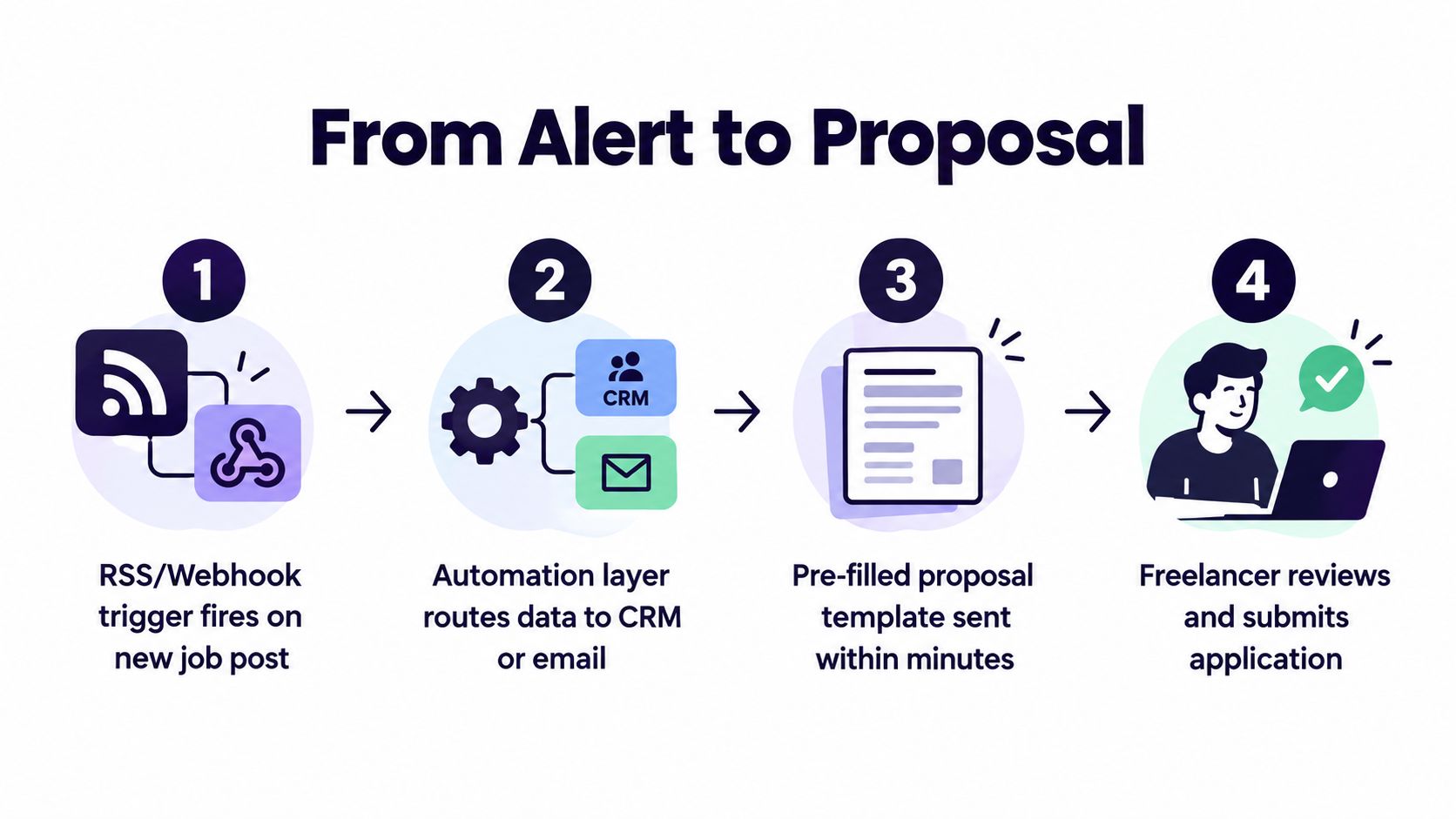
A fast draft still needs a deliberate review. Confirm that the client fits your service, the budget makes sense, and the requirements are clear. Replace generic praise with a specific opening tied to the posting. That review is the safeguard native alerts cannot provide by themselves. They can surface an opportunity, while automation removes the delay between discovery, research, and a usable draft.
Add controls before increasing speed
Put budget and client-history filters inside the workflow where possible. Send uncertain matches to a review queue instead of generating a full proposal for every alert. As a working rule, cap yourself at three or four proposals per hour to protect account health and prevent faster delivery from becoming indiscriminate sending.
Log each alert and outcome. Record whether the proposal was sent, viewed, followed by an interview, or converted into a hire. Upwork defines these stages as Sent, Viewed, Interviews, and Hires, and its proposal insights update hourly. Upwork's proposal insights guidance helps assess whether faster alerts improve the funnel rather than merely increasing submission volume.
Troubleshooting Alerts That Do Not Fire or Match Wrong
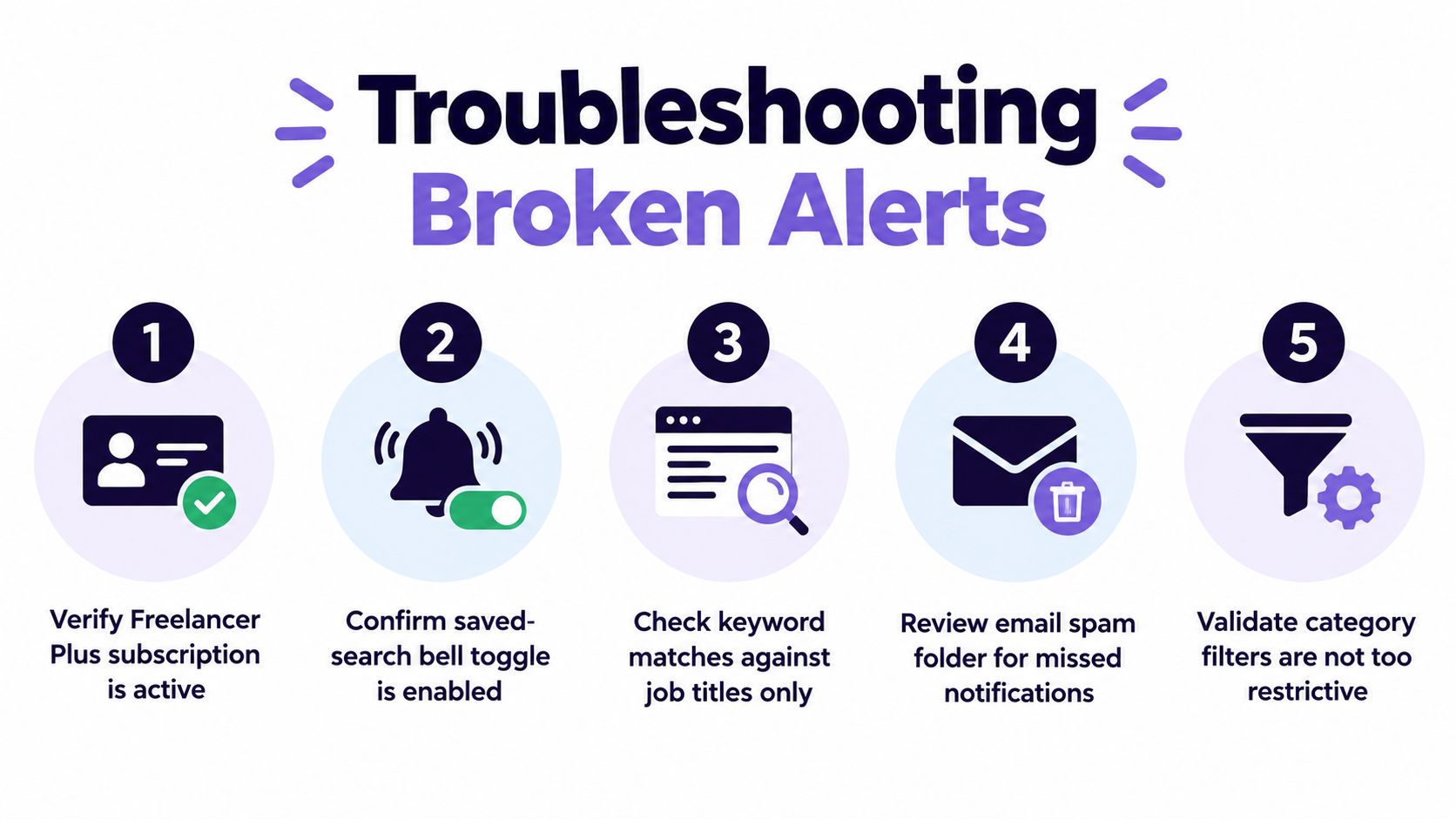
A missing alert doesn't always mean Upwork failed to find a match. The account may be ineligible, the saved-search toggle may be off, or the message may be sitting in a filtered inbox. Diagnose the delivery path before rewriting every keyword.
When nothing arrives
Check the Freelancer Plus status first if you're relying on official instant alerts. Open the bell settings for the saved search and confirm that the notification toggle is enabled. Then inspect spam, promotions, and other filtered inbox folders. Finally, verify whether the search is configured for a digest rather than a faster delivery option.
Apply those checks in order because each takes little time and identifies a different failure point. If the alert still doesn't appear, run the search manually and compare a newly posted matching job with the exact terms and filters in the saved search.
When alerts duplicate the same job
Duplicates usually come from overlap rather than a mysterious delivery fault. Compare saved searches for repeated keywords, overlapping categories, and identical service terms. Multiple browser sessions can also make the same notification feel duplicated, especially when desktop and mobile settings are both active.
Keep one primary search for each service line and disable redundant versions. After changing a search, monitor the next delivery cycle on one device before re-enabling every channel.
When the feed is too broad
Inspect the query itself. Default filters may have been cleared, parentheses may have disappeared from an OR group, or the category may be set to all subcategories. Search titles and results manually to see whether the unwanted jobs share a term that should become an exclusion.
Use this five-minute checklist whenever the feed feels wrong:
- Eligibility: Confirm the account can access the alert type.
- Toggle: Confirm the saved-search bell is enabled.
- Inbox: Search spam and filtered folders.
- Query: Test keywords against recent job titles.
- Categories: Remove restrictions that are too narrow, or narrow an unrestricted category.
Speed Habits That Win the First Hour After Posting
Alert speed only creates an opportunity. Conversion depends on what happens next. Set a 30-minute response target, keep proposal templates tagged by service line, and make the first two lines specific to the client's project instead of merely repeating the job title.
Keep your portfolio links and proof points ready before an alert arrives. Check the budget, client hire history, and requirements before spending Connects. A one-tap Connects purchase option can remove friction, but it shouldn't become permission to apply without qualification.
Build a repeatable weekly cadence
Maintain a small template library for development, design, marketing, SEO, and other distinct offers. Each template should have a replaceable opening, a relevant example, and a clear next step. The template provides speed, while the customization demonstrates that you read the brief.
Log rejection patterns rather than treating every rejection as random. If a search repeatedly produces poor-fit work, adjust its keywords weekly. If a service line produces views but few interviews, revise the opening and proof instead of increasing alert volume.
Use this benchmark checklist:
- Alert to inbox: Aim for under 5 minutes when the opportunity demands immediate review.
- Drafting: Have a credible proposal ready within 15 minutes.
- Connects: Check your balance before the next strong match arrives.
- Pipeline: Verify the RSS or notification workflow before noon.
- Friday review: Identify which searches produced qualified conversations and wins.
The target isn't heroic effort or constant refreshing. It's a dependable cadence that puts you among the earliest relevant applicants while preserving enough judgment to avoid wasting Connects. Upwork's own proposal analytics let you compare Sent, Viewed, Interviews, and Hires, so evaluate the system by downstream movement, not by how many alerts reach your inbox.
This guide to submitting a proposal on Upwork is useful when you want to tighten the final step after the alert has done its job.
Earlybird AI connects Upwork job monitoring with personalized proposal preparation, so matching opportunities can move from alert to review without waiting for a delayed inbox cycle. If you want a faster, more structured way to qualify jobs and act on them, visit Earlybird AI and explore how it fits your proposal workflow.